Embedding (and Extracting) Binary Files like DLLs into an EXE as Resources

A Windows .EXE executable file can contain binary resources, which are basically arbitrary binary data embedded in the file.

In particular, it’s possible to embed one or more DLLs as binary resources into an EXE. In this article, I’ll first show you how to embed a DLL as a binary resource into an EXE using the Visual Studio IDE; then, you’ll learn how to access that binary resource data using proper Windows API calls.
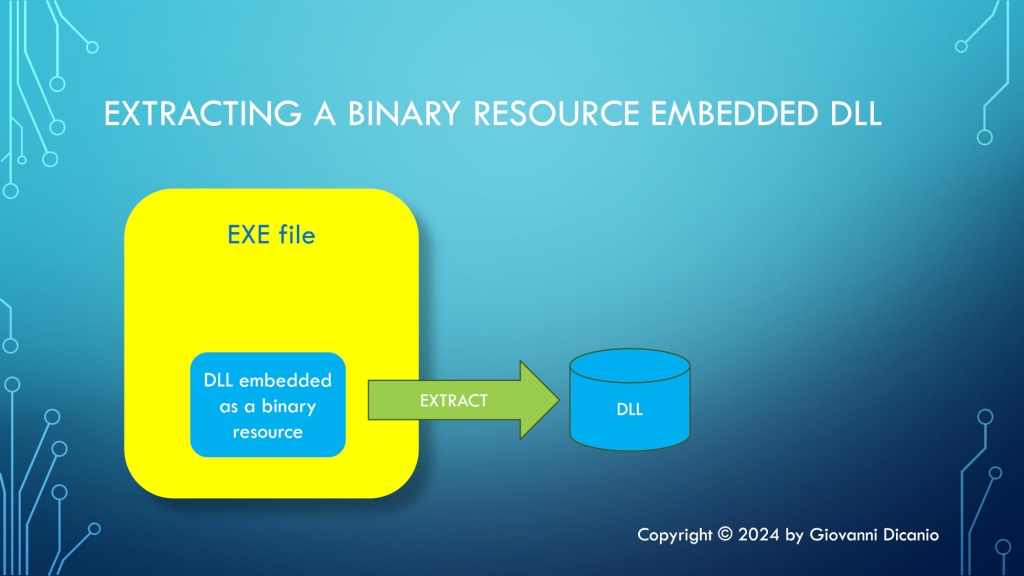
A Windows EXE file can contain one or more DLLs embedded as binary resources.

Embedding a Binary Resource Using Visual Studio IDE

If you are using Visual Studio to develop your Windows C++ applications, from Solution Explorer you can right-click your EXE project node, then choose Add > Resource from the menu.
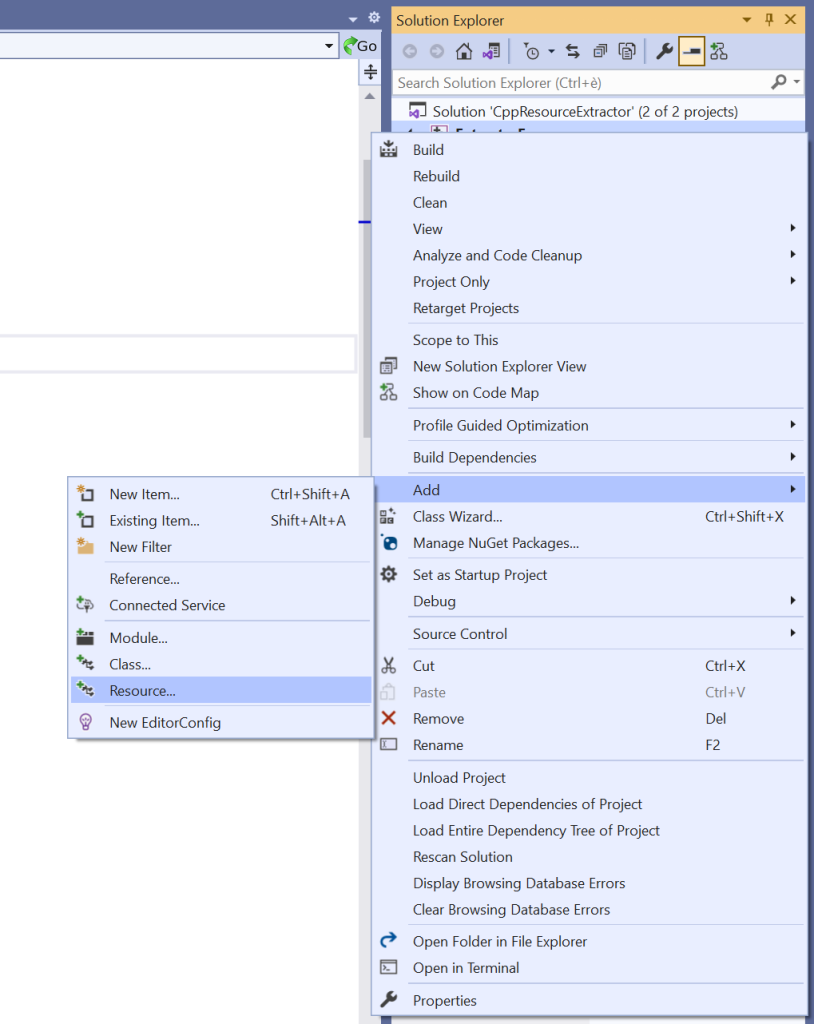
Menu command to add a resource using Visual Studio.
Adding a resource from the Visual Studio IDE

Then click the Import button, and select the binary resource to embed into the EXE, for example: TestDll.dll.
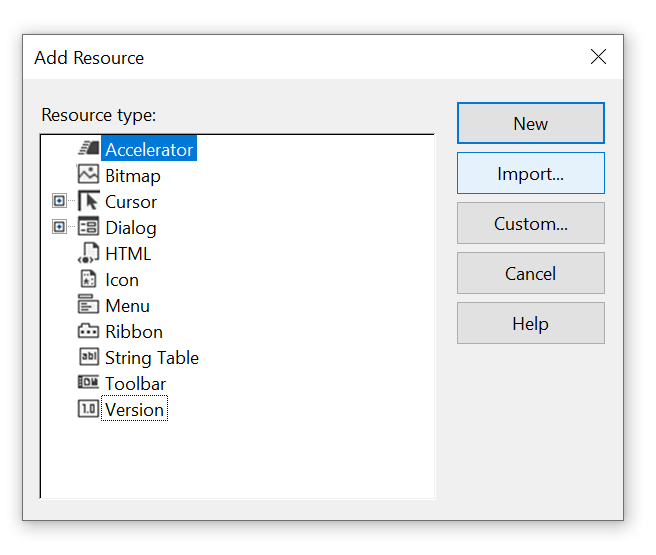
The Add Resource dialog box in Visual Studio
Click the Import button to add the binary resource (e.g. DLL)

In the Custom Resource Type dialog box that appears next, enter RCDATA as Resource type.

Then click the OK button.

A hex representation of the resource bytes is shown in the IDE. Type Ctrl+S or click the diskette icon in the toolbar to save the new resource data.

You can close the binary hex representation of the resource.

The resource was automatically labeled by the Visual Studio IDE as IDR_RCDATA1. To change that resource ID, you can open Resource View. Then, expand the project node, until you see the RCDATA virtual folder, and then IDR_RCDATA1 inside it. Click the IDR_RCDATA1 item to select it.

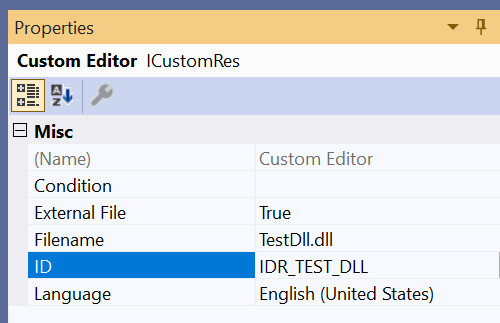
In the Properties grid below, you can change the ID field, for example: you can rename the resource ID as IDR_TEST_DLL.

Type Ctrl+S to save the modifications.
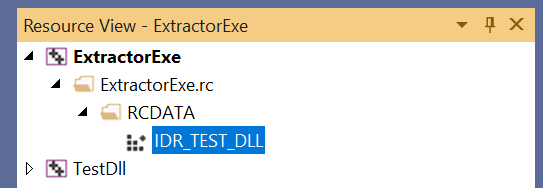
The binary resource ID under the RCDATA virtual folder in Resource View
The binary resource ID (IDR_TEST_DLL) under the RCDATA virtual folder in Resource View
The resource properties grid
The Properties grid to edit the resource properties

Don’t forget to #include the resource header (for example: “resource.h”) in your C++ code when you need to refer to the embedded resource by its ID.

In particular, if you open the resource.h file that was created and modified by Visual Studio, you’ll see a #define line that associates the “symbolic” name of the resource (e.g. IDR_TEST_DLL) with an integer number that represents the integer ID of the resource, for example:

#define IDR_TEST_DLL            101

Accessing an Embedded Binary Resource from C/C++ Code

Once you have embedded a binary resource, like a DLL, into your EXE, you can access the resource’s binary data using some specific Windows APIs. In particular:

  1. Invoke FindResource to get the specified resource’s information block (represented by an HRSRC handle).
  2. Invoke LoadResource, passing the above handle to the resource information block. On success, LoadResource will return another handle (declared as HGLOBAL for backward compatibility), that can be used to access the first byte of the resource.
  3. Invoke LockResource passing the resource handle returned by LoadResource, to get access to the first byte of the resource.

To get the size of the resource, you can call the SizeofResource API.

The above “API dance” can be translated into the following C++ code:

#include "resource.h"  // for the resource ID (e.g. IDR_TEST_DLL)


// Locate the embedded resource having ID = IDR_TEST_DLL
HRSRC hResourceInfo = ::FindResource(hModule,
                                     MAKEINTRESOURCE(IDR_TEST_DLL),
                                     RT_RCDATA);
if (hResourceInfo == nullptr)
{
    // Handle error...
}

// Get the handle that will be used to access 
// the first byte of the resource
HGLOBAL hResourceData = ::LoadResource(hModule, hResourceInfo);
if (hResourceData == nullptr)
{
    // Handle error...
}

// Get the address of the first byte of the resource
const void * pvResourceData = ::LockResource(hResourceData);
if (pvResourceData == nullptr)
{
    // Handle error...
}

// Get the size, in bytes, of the resource
DWORD dwResourceSize = ::SizeofResource(hModule, hResourceInfo);
if (dwResourceSize == 0)
{
    // Handle error...
}

I uploaded on GitHub a C++ demo code that extracts a DLL embedded as a resource in the EXE, and, for testing purposes, invokes a function exported from the extracted DLL. In particular, you can take a look at the ResourceBinaryView.h file for a reusable C++ class to get a read-only binary view of a resource.

P.S. An EXE is not the only type of Windows Portable Executable (PE) file that can have embedded resources. For example: DLLs can contain resources, as well.
Unicode Conversions with String Views as Input Parameters

Replacing input STL string parameters with string views: Is it always possible?

In a previous blog post, I showed how to convert between Unicode UTF-8 and UTF-16 using STL string classes like std::string and std::wstring. The std::string class can be used to store UTF-8-encoded text, and the std::wstring class can be used for UTF-16. The C++ Unicode conversion code is available on GitHub as open source project.

The above code passes input string parameters using const references (const &) to STL string objects:

// Convert from UTF-16 to UTF-8
std::string ToUtf8(std::wstring const& utf16)
    
// Convert from UTF-8 to UTF-16
std::wstring ToUtf16(std::string const& utf8)

Since C++17, it’s also possible to use string views for input string parameters. Since string views are cheap to copy, they can just be passed by value (instead of const&). For example:

// Convert from UTF-16 to UTF-8
std::string ToUtf8(std::wstring_view utf16)
    
// Convert from UTF-8 to UTF-16
std::wstring ToUtf16(std::string_view utf8)

As you can see, I replaced the input std::wstring const& parameter above with a simpler std::wstring_view passed by value. Similarly, std::string const& was replaced with std::string_view.

Important Gotcha on String Views and Null Termination

There is an important note to make here. The WideCharToMultiByte and MultiByteToWideChar Windows C-interface APIs that are used in the conversion code can accept input strings in two forms:

  1. A null-terminated C-style string pointer
  2. A counted (in bytes or wchar_ts) string pointer

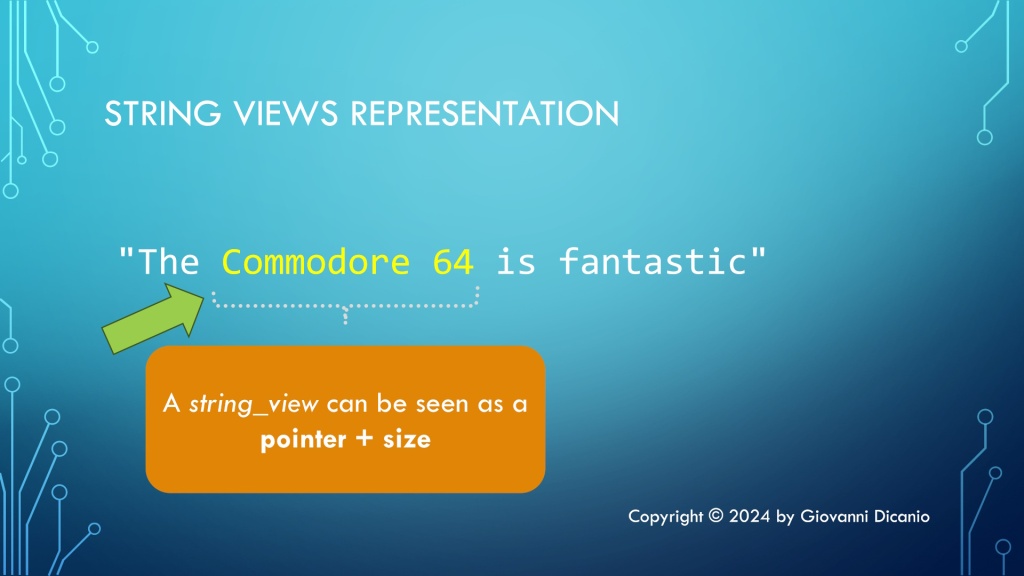
In my code, I used the second option, i.e. the counted behavior of those APIs. So, using string views instead of STL string classes works just fine in this case, as string views can be seen as a pointer and a “size”, or count of characters.

A representation of string views: they can be seen as a pointer and a size.
A representation of string views: pointer + size

But string views are not necessarily null-terminated, which implies that you cannot safely use string view parameters when passing strings to APIs that expect null-terminated C-style strings. In fact, if the API is expecting a terminating null, it may well run over the valid string view characters. This is a very important point to keep in mind, to avoid subtle and dangerous bugs when using input string view parameters.

The modified code that uses input string view parameters instead of STL string classes passed by const& can be found in this branch of the main Unicode string conversion project on GitHub.

Simplifying Windows Registry Programming with the C++ WinReg Library

A convenient easy-to-use and hard-to-misuse high-level C++ library that wraps the complexity of the Windows Registry C-interface API.

The native Windows Registry API is a C-interface API, that is low-level and kind of hard and cumbersome to use.

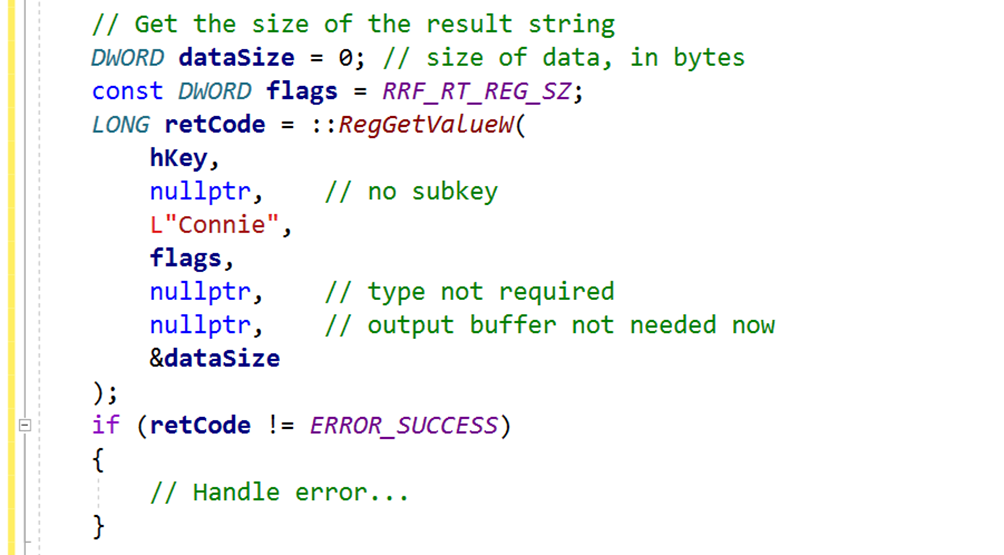
For example, suppose that you simply want to read a string value under a given key. You would end up writing code like this:

Complex code to get a string value from the registry, using the Windows native Registry API.
Sample code excerpt to read a string value from the Windows Registry using the native Windows C-interface API.

Note how complex and bug-prone that kind of code that directly calls the Windows RegGetValueW API is. And this is just the part to query the destination string length. Then, you need to allocate a string object with proper size (and pay attention to proper size-in-bytes-to-size-in-wchar_ts conversion!), and after that you can finally read the actual string value into the local string object.

That’s definitely a lot of bug-prone C++ code, and this is just to query a string value!

Moreover, in modern C++ code you should prefer using nice higher-level resource manager classes with automatic resource cleanup, instead of raw HKEY handles that are used in the native C-interface Windows Registry API.

Fortunately, it’s possible to hide that kind of complex and bug-prone code in a nice C++ library, that offers a much more programmer-friendly interface. This is basically what my C++ WinReg library does.

For example, with WinReg querying a string value from the Windows Registry is just a simple one-line of C++ code! Look at that:

Simple one-liner C++ code to get a string value from the Registry using WinReg.
You can query a string value with just one simple line of C++ code using WinReg.

With WinReg you can also enumerate all the values under a given key with simple intuitive C++ code like this:

auto values = key.EnumValues();

for (const auto & [valueName, valueType] : values)
{
    //
    // Use valueName and valueType
    //
    ...
}

WinReg is an open-source C++ library, available on GitHub. For the sake of convenience, I packaged and distribute it as a header-only library, which is also available via the vcpkg package manager.

If you need to access the Windows Registry from your C++ code, you may want to give C++ WinReg a try.