The IsoCpp.org Process for Suggesting Articles Is Broken and Should Be Fixed

The process of submitting article suggestions to IsoCpp.org can be kind of “frustrating”, with inconsistencies in acceptance timing and a lack of communication. Making suggestions requires some effort, yet the outcomes feel random. I propose some improvements.

I have suggested several articles to the IsoCpp.org Web site. Some article suggestions were published just a few hours after sending them; others the next day or two, others after a week or two, while other suggestions seemed like lost by anonymous persons in a “black hole”. Who processed those suggestions? Why were those rejected?

This process seems kind of random and unprofessional, and not respectful for the time we put in suggesting articles.

In fact, for suggesting an article, it’s not sufficient to copy-and-paste a link to the content and just click a “Suggest” button. You have to prepare a little document, following a pattern and some editorial guides made available from the IsoCpp Web site. It does take some time.

Then, you click the button to make the suggestion… and it’s like a random coin toss! Will the suggestion be accepted? Will the suggestion be discarded? When? Why? By whom?

The process is clearly broken, and should be fixed, out of respect for the time of the people who made a suggestion, and for what should be a quality Web site that lists links to relevant content.

A possible fix to the process could be like this:

Once you make a suggestion, an email is sent to you, saying that the IsoCpp editorial team has received the suggestion, and will reply in a maximum given period of time: one week, two weeks, whatever. But do give a time limit, and don’t just disappear! I think a 15-day time limit for a reply would be acceptable.

Then, do send a reply to the person suggesting the article, be it positive or negative. But do send a reply! If the suggestion is accepted, say thank you and give a link to the Web page containing the suggestion.

On the other hand, if the suggestion is not accepted, say thank you again, and do give a reason for the refusal. And also give the person suggesting the article an option to further discuss that via email with the editor who refused the suggestion, with the option to discuss that with other editors, too.

Moreover, once a person has a certain number of approved suggestions, let the system automatically approve their suggestions by default. This “privilege level” could be revoked if a certain number of unworthy suggestions or suggestions not relevant for the IsoCpp topics are made.

Finding the Next Unicode Code Point in Strings: UTF-8 vs. UTF-16

How does the simple ASCII “pch++” map to Unicode? How can we find the next Unicode code point in text that uses variable-length encodings like UTF-16 and UTF-8? And, very importantly: Which one is *simpler*?

When working with ASCII strings, finding the next character is really easy: if p is a const char* pointer pointing to the current char, you can simply advance it to point to the next ASCII character with a simple p++.

What happens when the text is encoded in Unicode? Let’s consider both cases of the UTF-16 and UTF-8 encodings.

According to the official “What is Unicode?” web page of the Unicode consortium’s Web site:

The Unicode Standard provides a unique number for every character, no matter what platform, device, application or language.

This unique number is called code point.

In the UTF-16 encoding, a Unicode code point is represented using 16-bit code units. In the UTF-8 encoding, a Unicode code point is represented using 8-bit code units.

Both UTF-16 and UTF-8 are variable-length encodings. In particular, UTF-8 encodes each valid Unicode code point using one to four 8-bit byte units. On the other hand, UTF-16 is somewhat simpler: In fact, Unicode code points are encoded in UTF-16 using just one or two 16-bit code units.

EncodingSize of a code unitNumber of code units for encoding a single code point
UTF-1616 bits1 or 2
UTF-88 bits1, 2, 3, 4

I used the help of AI to generate C++ code that finds the next code point, in both cases of UTF-8 and UTF-16.

The functions have the following prototypes:

// Returns the next Unicode code point and number of bytes consumed.
// Throws std::out_of_range if index is out of bounds or string ends prematurely.
// Throws std::invalid_argument on invalid UTF-8 sequence.
[[nodiscard]] std::pair<char32_t, size_t> NextCodePointUtf8(
    const std::string& str, 
    size_t index
);

// Returns the next Unicode code point and the number of UTF-16 code units consumed.
// Throws std::out_of_range if index is out of bounds or string ends prematurely.
// Throws std::invalid_argument on invalid UTF-16 sequence.
[[nodiscard]] std::pair<char32_t, size_t> NextCodePointUtf16(
    const std::wstring& input, 
    size_t index
);

If you take a look at the implementation code, the code for UTF-16 is much simpler than the code for UTF-8. Even just in term of lines of code, the UTF-16 version is 34 LOC, vs. the UTF-8 version which is 84 LOC! So, the UTF-8 version takes more than 2X LOC than UTF-16! In addition, the code of the UTF-8 version (which I generated with the help of AI) is also much more complex in its logic.

For more details, you can take a look at this GitHub repo of mine. In particular, the implementation code for these functions is located inside the NextCodePoint.cpp source file.

Now, I’d like to ask: Does it really make sense to use UTF-8 to process Unicode text inside our C++ code? Is the higher complexity of processing UTF-8 really worth it? Wouldn’t it be better to use UTF-16 for Unicode string processing, and just use UTF-8 outside of application boundaries?

Converting Between Unicode UTF-16 and UTF-8 in Windows C++ Code

A detailed discussion on how to convert C++ strings between Unicode UTF-16 and UTF-8 in C++ code using Windows APIs like WideCharToMultiByte, and STL strings and string views.

Unicode UTF-16 is the “native” Unicode encoding used in Windows. In particular, the UTF-16LE (Little-Endian) format is used (which specifies the byte order, i.e. the bytes within a two-byte code unit are stored in the little-endian format, with the least significant byte stored at lower memory address).

Often the need arises to convert between UTF-16 and UTF-8 in Windows C++ code. For example, you may invoke a Windows API that returns a string in UTF-16 format, like FormatMessageW to get a descriptive error message from a system error code, and then you want to convert that string to UTF-8 to return it via a std::exception::what overriding, or write the text in UTF-8 encoding in a log file.

I usually like working with “native” UTF-16-encoded strings in Windows C++ code, and then convert to UTF-8 for external storage or transmission outside of application boundaries, or for cross-platform C++ code.

So, how can you convert some text from UTF-16 to UTF-8? The Windows API makes it available a C-interface function named WideCharToMultiByte. Note that there is also the symmetric MultiByteToWideChar that can be used for the opposite conversion from UTF-8 to UTF-16.

Let’s focus our attention on the aforementioned WideCharToMultiByte. You pass to it a UTF-16-encoded string, and on success this API will return the corresponding UTF-8-encoded string.

As you can see from Microsoft official documentation, this API takes several parameters:

int WideCharToMultiByte(
  [in]            UINT   CodePage,
  [in]            DWORD  dwFlags,
  [in]            LPCWCH lpWideCharStr,
  [in]            int    cchWideChar,
  [out, optional] LPSTR  lpMultiByteStr,
  [in]            int    cbMultiByte,
  [in, optional]  LPCCH  lpDefaultChar,
  [out, optional] LPBOOL lpUsedDefaultChar
);

So, instead of explicitly invoking it every time you need in your code, it’s much better to wrap it in a convenient higher-level C++ function.

Choosing a Name for the Conversion Function

How can we name that function? One option could be ConvertUtf16ToUtf8, or maybe just Utf16ToUtf8. In this way, the flow or direction of the conversion seems pretty clear from the function’s name.

However, let’s see some potential C++ code that invokes this helper function:

std::string utf8 = Utf16ToUtf8(utf16);

The kind of ugly thing here is that we see the utf8 result on the same side of the Utf16 part of the function name; and the Utf8 part of the function name is near the utf16 input argument:

std::string utf8 = Utf16ToUtf8(utf16);
//          ^^^^   =====   
//
// The utf8 return value is near the Utf16 part of the function name,
// and the Utf8 part of the function name is near the utf16 argument.

This may look somewhat intricate. Would it be nicer to have the UTF-8 return and UTF-16 argument parts on the same side, putting the return on the left and the argument on the right? Something like that:

std::string utf8 = Utf8FromUtf16(utf16);
//          ^^^^^^^^^^^    ===========
// The UTF-8 and UTF-16 parts are on the same side
//
// result = [Result]From[Argument](argument);
//

Anyway, pick the coding style that you prefer.

Let’s assume Utf8FromUtf16 from now on.

Defining the Public Interface of the Conversion Function

We can store the UTF-8 result string using std::string as the return type. For the UTF-16 input argument, we could use a std::wstring, passing it to the function as a const reference (const &), since this is an input read-only parameter, and we want to avoid potentially expensive deep copies:

std::string Utf8FromUtf16(const std::wstring& utf16);

If you are using at least C++17, another option to pass the input UTF-16 string is using a string view, in particular std::wstring_view:

std::string Utf8FromUtf16(std::wstring_view utf16);

Note that string views are cheap to copy, so they can be simply passed by value.

Note that when you invoke the WideCharToMultiByte API you have two options for passing the input string. In both cases you pass a pointer to the input UTF-16 string in the lpWideCharStr parameter. Then in the cchWideChar parameter you can either specify the count of wchar_ts in the input string, or pass -1 if the string is null-terminated and you want to process the whole string (letting the API figure out the length).

Note that passing the explicit wchar_t count allows you to process only a sub-string of a given string, which works nicely with the std::wstring_view C++ class.

In addition, you can mark this helper C++ function with [[nodiscard]], as discarding the return value would likely be a programming error, so it’s better to at least have the C++ compiler emit a warning about that:

[[nodiscard]] std::string Utf8FromUtf16(std::wstring_view utf16);

Now that we have defined the public interface of our helper conversion function, let’s focus on the implementation code.

Implementing the Conversion Code

The first thing we can do is to check the special case of an empty input string, and, in such case, just return an empty string back to the caller:

// Special case of empty input string
if (utf16.empty())
{
    // Empty input --> return empty output string
    return std::string{};
}

Now that we got this special case out of our way, let’s focus on the general case of non-empty UTF-16 input strings. We can proceed in three logical steps, as follows:

  1. Invoke the WideCharToMultiByte API a first time, to get the size of the result UTF-8 string.
  2. Create a std::string object with large enough internal array, that can store a UTF-8 string of that size.
  3. Invoke the WideCharToMultiByte API a second time, to do the actual conversion from UTF-16 to UTF-8, passing the address of the internal buffer of the UTF-8 string created in the previous step.

Let’s write some C++ code to put these steps into action.

First, the WideCharToMultiByte API can take several flags. In our case, we’ll use the WC_ERR_INVALID_CHARS flag, which tells the API to fail if an invalid input character is encountered. Since we’ll invoke the API a couple times, it makes sense to store this flag in a constant, and reuse it in both API calls:

// Safely fail if an invalid UTF-16 character sequence is encountered
constexpr DWORD kFlags = WC_ERR_INVALID_CHARS;

We also need the length of the input string, in wchar_t count. We can invoke the length (or size) method of std::wstring_view for that. However, note that wstring_view::length returns a value of type equivalent to size_t, while the WideCharToMultiByte API’s cchWideChar parameter is of type int. So we have a type mismatch here. We could simply use a static_cast<int> here, but that would be more like putting a “patch” on the issue. A better approach is to first check that the input string length can be safely stored inside an int, which is always the case for strings of reasonable lengths, but not for gigantic strings, like for strings of length greater than 2^31-1, that is more than two billion wchar_ts in size! In such cases, the conversion from an unsigned integer (size_t) to a signed integer (int) can generate a negative number, and negative lengths don’t make sense.

For a safe conversion, we could write this C++ code:

if (utf16.length() > static_cast<size_t>((std::numeric_limits<int>::max)()))
{
    throw std::overflow_error(
        "Input string is too long; size_t-length doesn't fit into an int."
    );
}

// Safely cast from size_t to int
const int utf16Length = static_cast<int>(utf16.length());

Now we can invoke the WideCharToMultiByte API to get the length of the result UTF-8 string, as described in the first step above:

// Get the length, in chars, of the resulting UTF-8 string
const int utf8Length = ::WideCharToMultiByte(
    CP_UTF8,          // convert to UTF-8
    kFlags,           // conversion flags
    utf16.data(),     // source UTF-16 string
    utf16Length,      // length of source UTF-16 string, in wchar_ts
    nullptr,          // unused - no conversion required in this step
    0,                // request size of destination buffer, in chars
    nullptr, nullptr  // unused
);
if (utf8Length == 0)
{
    // Conversion error: capture error code and throw
    const DWORD errorCode = ::GetLastError();
        
    // You can throw an exception here...
}

Now we can create a std::string object of the desired length, to store the result UTF-8 string (this is the second step):

// Make room in the destination string for the converted bits
std::string utf8(utf8Length, '\0');
char* utf8Buffer = utf8.data();

Now that we have a string object with proper size, we can invoke the WideCharToMultiByte API a second time, to do the actual conversion (this is the third step):

// Do the actual conversion from UTF-16 to UTF-8
int result = ::WideCharToMultiByte(
    CP_UTF8,          // convert to UTF-8
    kFlags,           // conversion flags
    utf16.data(),     // source UTF-16 string
    utf16Length,      // length of source UTF-16 string, in wchar_ts
    utf8Buffer,       // pointer to destination buffer
    utf8Length,       // size of destination buffer, in chars
    nullptr, nullptr  // unused
);
if (result == 0)
{
    // Conversion error: capture error code and throw
    const DWORD errorCode = ::GetLastError();

    // Throw some exception here...
}

And now we can finally return the result UTF-8 string back to the caller!

return utf8;

You can find reusable C++ code that follows these steps in this GitHub repo of mine. This repo contains code for converting in both directions: from UTF-16 to UTF-8 (as described here), and vice versa. The opposite conversion (from UTF-8 to UTF-16) is done invoking the MultiByteToWideChar API; the logical steps are the same.


P.S. You can also find an article of mine about this topic in an old issue of MSDN Magazine (September 2016): Unicode Encoding Conversions with STL Strings and Win32 APIs. This article contains a nice introduction to the Unicode UTF-16 and UTF-8 encodings. But please keep in mind that this article predates C++17, so there was no discussion of using string views for the input string parameters. Moreover, the (non const) pointer to the string’s internal array was retrieved with the &s[0] syntax, instead of invoking the convenient non-const [w]string::data overload introduced in C++17.

Getting a Descriptive Error Message for a Windows System Error Code

Let’s see how to wrap the low-level and kind of “kitchen sink” C-interface FormatMessage Windows API in convenient C++ code, to get the error message string corresponding to a Windows system error code.

Suppose that you have a Windows system error code, like those returned by GetLastError, and you want to get a descriptive error message associated with it. For example, you may want to show that message to the user via a message box, or write it to some log file, etc. You can invoke the FormatMessage Windows API for that.

FormatMessage is quite versatile, so it’s important to get the various paramaters right.

First, let’s assume that you are working with the native Unicode encoding of Windows APIs, which is UTF-16 (you can always convert to UTF-8 later, for example before writing the error message string to a log file). So, the API to call in this case is FormatMessageW.

As previously stated, FormatMessage is a very versatile API. Here we’ll call it in a specific mode, which is basically requesting the API to allocate a buffer containing the error message, and handing us a pointer to that buffer. It will be our responsibility to release that buffer when it’s no longer needed, invoking the LocalFree API.

Let’s start with the definition of the public interface of a C++ helper function that wraps the FormatMessage invocation details. This function will take as input a system error code, and, on success, will return a std::wstring containing the corresponding descriptive error message. The function prototype looks like this:

std::wstring GetErrorMessage(DWORD errorCode)

Since it would be an error to discard the returned string, if you are using at least C++17, you can mark the function with [[nodiscard]].

[[nodiscard]] std::wstring GetErrorMessage(DWORD errorCode)

Inside the body of the function, we can start declaring a pointer to a wchar_t Unicode UTF-16 null-terminated string, that will store the error message:

wchar_t* pszMessage = nullptr;

This pointer will be placed in the above variable by the FormatMessageW API itself. To request that, we’ll pass a specific flag to FormatMessageW, which is FORMAT_MESSAGE_ALLOCATE_BUFFER.

The call to FormatMessageW looks like this:

DWORD result = ::FormatMessageW(
        FORMAT_MESSAGE_ALLOCATE_BUFFER |
        FORMAT_MESSAGE_FROM_SYSTEM |
        FORMAT_MESSAGE_IGNORE_INSERTS,
        nullptr,
        errorCode,
        LANG_USER_DEFAULT, // = MAKELANGID(LANG_NEUTRAL, SUBLANG_DEFAULT)
        reinterpret_cast<LPWSTR>(&pszMessage),  // the message buffer pointer will be written here
        0,
        nullptr
    );

Note that we take the address of the pszMessage local variable (&pszMessage) and pass it to FormatMessageW. The API will allocate the message string and will store the pointer to it in the pszMessage variable. A reinterpret_cast is required since the API parameter is of type LPWSTR (i.e. wchar_t*), but we need another level of indirection here (wchar_t **) for the output pointer parameter.

We use the FORMAT_MESSAGE_FROM_SYSTEM flag to retrieve the message text associated to a Windows system error code (i.e. the errorCode input parameter), like those returned by GetLastError.

The FORMAT_MESSAGE_IGNORE_INSERTS flag is used to let the API know that we want to ignore potential insertion sequences (like %1, %2, …) in the message definition.

The various details of the FormatMessageW API can be found in the official Microsoft documentation.

On error, the API returns zero. So we can add an if statement to process the error case:

if (result == 0)
{
    // Error: FormatMessage failed.
    // We can throw an exception, 
    // or return a specific error message...
}

On success, FormatMessageW will store in the pszMessage pointer the address of the error message null-terminated string. At this point, we could simply construct a std::wstring object from it, and return the wstring back to the caller.

However, since the error message string is allocated by FormatMessageW for us, it’s important to free the allocated memory when it’s not needed anymore, to avoid memory leaks. To do so, we must call the LocalFree API, passing the error message string pointer.

In C++, we can safely wrap the LocalFree API call in a simple RAII wrapper, such that the destructor will invoke that function and will automatically free the memory at scope exit.

    // Protect the message pointer returned by FormatMessage in safe RAII boundaries.
    // LocalFree will be automatically invoked at scope exit.
    ScopedLocalPtr messagePtr(pszMessage);

    // Return a std::wstring object storing the error message
    return pszMessage;
}

Here’s the complete C++ implementation code:

//==========================================================
// C++ Wrapper on the Windows FormatMessage API, 
// to get the error message string corresponding 
// to a Windows system error code.
//
// by Giovanni Dicanio
//==========================================================


#include <windows.h>        // Windows Platform SDK

#include <atlbase.h>        // AtlThrowLastWin32

#include <string>           // std::wstring


//
// Simple RAII wrapper that automatically invokes LocalFree at scope exit
//
class ScopedLocalPtr
{
public:
    // The memory pointed to by the input pointer will be automatically released
    // with a call to LocalFree at scope exit
    explicit ScopedLocalPtr(void* ptr)
        : m_ptr(ptr)
    {}

    // Automatically invoke LocalFree at scope exit
    ~ScopedLocalPtr()
    {
        ::LocalFree(reinterpret_cast<HLOCAL>(m_ptr));
    }

    // Get the wrapped pointer
    [[nodiscard]] void* GetPtr() const
    {
        return m_ptr;
    }

    //
    // Ban copy
    //
private:
    ScopedLocalPtr(const ScopedLocalPtr&) = delete;
    ScopedLocalPtr& operator=(const ScopedLocalPtr&) = delete;

private:
    void* m_ptr;
};


//------------------------------------------------------------------------------
// Return an error message corresponding to the input error code.
// The input error code is a system error code like those
// returned by GetLastError.
//------------------------------------------------------------------------------
[[nodiscard]] std::wstring GetErrorMessage(DWORD errorCode)
{
    // On successful call to the FormatMessage API,
    // this pointer will store the address of the message string corresponding to the errorCode
    wchar_t* pszMessage = nullptr;

    // Ask FormatMessage to return the error message corresponding to errorCode.
    // The error message is stored in a buffer allocated by FormatMessage;
    // we are responsible to free it invoking LocalFree.
    DWORD result = ::FormatMessageW(
        FORMAT_MESSAGE_ALLOCATE_BUFFER |
        FORMAT_MESSAGE_FROM_SYSTEM |
        FORMAT_MESSAGE_IGNORE_INSERTS,
        nullptr,
        errorCode,
        LANG_USER_DEFAULT, // = MAKELANGID(LANG_NEUTRAL, SUBLANG_DEFAULT)
        reinterpret_cast<LPWSTR>(&pszMessage),  // the message buffer pointer will be written here
        0,
        nullptr
    );
    if (result == 0)
    {
        // Error: FormatMessage failed.
        // Here I throw an exception. An alternative could be returning a specific error message.
        AtlThrowLastWin32();
    }

    // Protect the message pointer returned by FormatMessage in safe RAII boundaries.
    // LocalFree will be automatically invoked at scope exit.
    ScopedLocalPtr messagePtr(pszMessage);

    // Return a std::wstring object storing the error message
    return pszMessage;
}

Linus Torvalds and the Supposedly “Garbage Code”

Linus Torvalds criticized a RISC-V Linux kernel contribution from a Google engineer as “garbage code.” The discussion focuses on the helper function make_u32_from_two_u16() versus Linus’s proposed explicit code. Let’s discuss the importance of using proper type casting, bit manipulation, and creating a safer, reusable macro or function for clarity and bug reduction.

Recently, Linus Torvalds publicly dismissed a RISC-V code contribution to the Linux kernel made by a Google engineer as “garbage code”:

https://lkml.org/lkml/2025/8/9/76

First, I think Linus should be more respectful of other people.

In addition, let’s focus on the make_u32_from_two_u16() helper. My understanding is that this is a C preprocessor macro (as the Linux Kernel is mainly written in C). Let’s compare that helper with the explicit code “(a << 16) + b” proposed by Linus.

First, this explicit code is likely wrong, and in fact Linus adds that “maybe you need to add a cast”.

Why should we add a cast? In Linus’s words: “[…] to make sure that ‘b’ doesn’t have high bits that pollutes the end result”. So, what should the explicit code look like according to him? “(a << 16) + (uint16_t)b”?

But let’s do a step back. We should ask ourselves: What are the types of ‘a’ and ‘b’? From the helper’s name, I would think they are two “u16”, so two uint16_t.

If I was asked to write C code that takes two uint16_t values ‘a’ and ‘b’ as input and combines them into a uint32_t, I would write something like that:

  ((uint32_t)a << 16) | (uint32_t)b

I would use the bitwise OR (|) instead of +; I find it more appropriate as we are working at the bit manipulation level here. But maybe that’s just a matter of personal preference and coding style.

Moreover, I’d use the type casts as shown above, on both ‘a’ and ‘b’.

I’m not sure what Linus meant with ‘b’ potentially having “high bits that pollutes the end result”. Could ‘b’ be a uint32_t? In that case, I would use a bitmask like 0xFFFF with bitwise AND (&) to clear the high bits of ‘b’.

Moreover, I’d probably use better names for ‘a’ and ‘b’, too, like ‘high’ and ‘low’, to make it clear what is the high 16-bit word and what is the low 16-bit word.

So, the correct explicit code is not something as simple as “(a << 16) + b”. You may need to type cast, and you have to pay attention to do it correctly with proper use of parentheses. And you may potentially need to clear the high bits of ‘b’ with a bitmask?

And, if this operation of combining two uint16_t into a uint32_t is done in several places, you sure have many opportunities to introduce bugs with the explicit code that Linus advocates for in his email!

So, it would be much better, clearer, nicer, and safer, to raise the semantic level of the code, and write a helper function or macro to do that combination safely and correctly.

A C macro could look like this:

#include <stdint.h>

#define MAKE_U32_FROM_TWO_U16(high, low) \
        ( ((uint32_t)(high) << 16) | (uint32_t)(low) )

Should we take into consideration the case in which ‘low’ has higher bits to clear? Then the macro becomes something like this:

#define MAKE_U32_FROM_TWO_U16(high, low) \
        ( ((uint32_t)(high) << 16) | ((uint32_t)(low) & 0xFFFF))

As you can see, the type casts, the parentheses, the potential bit-masking, do require attention. But once you get the code right, you can safely and conveniently reuse it every time you need!

So, the real garbage code is actually repeatedly writing explicit bug-prone or wrong code, like “(a << 16) + b”! Not hiding such code in a sane helper macro (or function), like shown above.


Instead of a preprocessor macro, we could use an inline helper function. For example, in C++ we could write something like this:

#include <stdint.h>

inline uint32_t make_u32_from_two_u16(uint16_t high, uint16_t low) 
{
    return (static_cast<uint32_t>(high) << 16) | 
           static_cast<uint32_t>(low);
}

We could even further refine this function, marking it noexcept, as it’s guaranteed to not throw exceptions.

And we could also make the function constexpr, as it can be evaluated at compile-time when the input arguments are constant.

With these additional refinements, we get:

inline constexpr uint32_t make_u32_from_two_u16(
    uint16_t high, 
    uint16_t low)  noexcept 
{
    return (static_cast<uint32_t>(high) << 16) |
           static_cast<uint32_t>(low);
}

How to Set the C++ Language Standard Version in VS Code

Manually editing the tasks.json to add the desired C++ compiler option.

So, after the previous discussion on that confusing UI design choice, how can you set the C++ language standard version for building your C++ code in VS Code with the MS C/C++ Extension?

One option is to open the tasks.json file, and edit it to add the desired compiler option. In particular, to enable C++20 compilation mode, the option for the MSVC compiler is /std:c++20. So, add this option as a string “/std:c++20” in the args property array in tasks.json:

Specifying the C++ language standard version in tasks.json as a command line option.
Editing the tasks.json file to specify the C++ language standard version in the “args” array

I still think that this modification to tasks.json should have been automatically done by the C/C++ Configurations UI, once the C++20 language standard version is set in there.

VS Code with MS C/C++ Extension: A Confusing UI Design Choice

In VS Code, selecting the C++ language standard is not as intuitive as one would expect.

I have been using Visual Studio for C++ development since it was still called Visual C++ (and was a 100% C++-focused IDE), starting from version 4 (maybe 4.2) on Windows 95. I loved VC++ 6. Even today, Microsoft Visual Studio is still my first choice for C++ development on Windows.

In addition to that, I wanted to use VS Code for C++ development for some course work. Why choosing VS Code? Well, in addition to being free to use (as is the Visual Studio Community Edition), another important point of VS Code in that teaching context is its cross-platform feature: in fact, it’s available not only for Windows, but also for Linux and Mac, and students using those platforms could easily follow along.

I had VS Code and the MS C/C++ extension already installed on one of my PCs. I wrote some C++ demo code that used some C++20 features. I tried to build that code, and I got some error messages, telling me that I was using features that required at least C++20. Fine, I thought: Maybe the default C++ standard is set to something pre-C++20 (for example, VS 2019 defaults to C++14).

So, I pressed Ctrl+Shift+P, selected C/C++ Edit Configurations (UI), and in the C/C++ Configurations page, selected c++20 for the C++ standard.

Then I pressed F5 to start a debugging session, preceded by a build process, and saw that the build process failed.

I took a look at the error message in the terminal window, and to my surprise the error messages were telling me that some libraries (like <span>) were available only with C++20 or later. But I had just selected the C++20 standard a few minutes ago!

So, I double-checked, pressing Ctrl+Shift+P and selecting C/C++ Edit Configurations (UI), and in the C/C++ Configurations, the selected C++ standard was c++20, as expected.

The C++20 Standard is selected in the Microsoft C/C++ Extension Configurations UI.
C++20 selected in the MS C/C++ Extension Configurations UI

I also took a look at the c_cpp_properties.json, and found that the “cppStandard” property was properly set to “c++20”, as well.

The C++20 Standard is selected in the c_cpp_properties.json file.
C++20 selected in the c_cpp_properties.json

Despite these confirmations in the UI, I noted that in the terminal window, on the command line used to build the C++ source code, the option to set the C++20 compilation mode was not passed to the C++ compiler!

The command line doesn't contain an option for the C++20 language standard previously set in the UI.
Surprisingly, the option for the C++ language standard was not passed on the command line

So, basically, the UI was telling me that the C++20 mode was enabled. But the C++ compiler was invoked in a way that did not reflect that, as the flag enabling C++20 was not specified on the command line!

I also tried to close and reopen VS Code, double-checked things one more time, but the results were always the same: C++20 was set in the C/C++ Configurations UI and in the c_cpp_properties.json file, but compilation failed due to the C++20 option not specified on the command line when invoking the C++ compiler.

I thought that this was a bug, and opened an issue on the MS C/C++ Extension GitHub page.

After some time, to my surprise, I noted that the issue was closed as “by design”! Seriously? I mean, what kind of good reasonable intuitive design is the one in which the UI tells you that you have selected a given C++ language standard, but the command line doesn’t compile your code according to that??

This is the comment associated to the closing of the issue:

This is “by design”. The settings in c_cpp_properties.json do not affect the build. You need to set the flags in your tasks.json or other source of build info (CMakeLists.txt etc.).

So, am I supposed to manually set the C++20 flag in the tasks.json, despite having already set it in the C/C++ Configurations UI? Well, I do think that is either a bug, or a bad and confusing design choice. If I set the C++20 option in the UI, that should be automatically reflected on the command line, as well. If a modification is required to tasks.json to enable C++20, that should have been the job of the UI, in which I had already selected the C++20 standard!

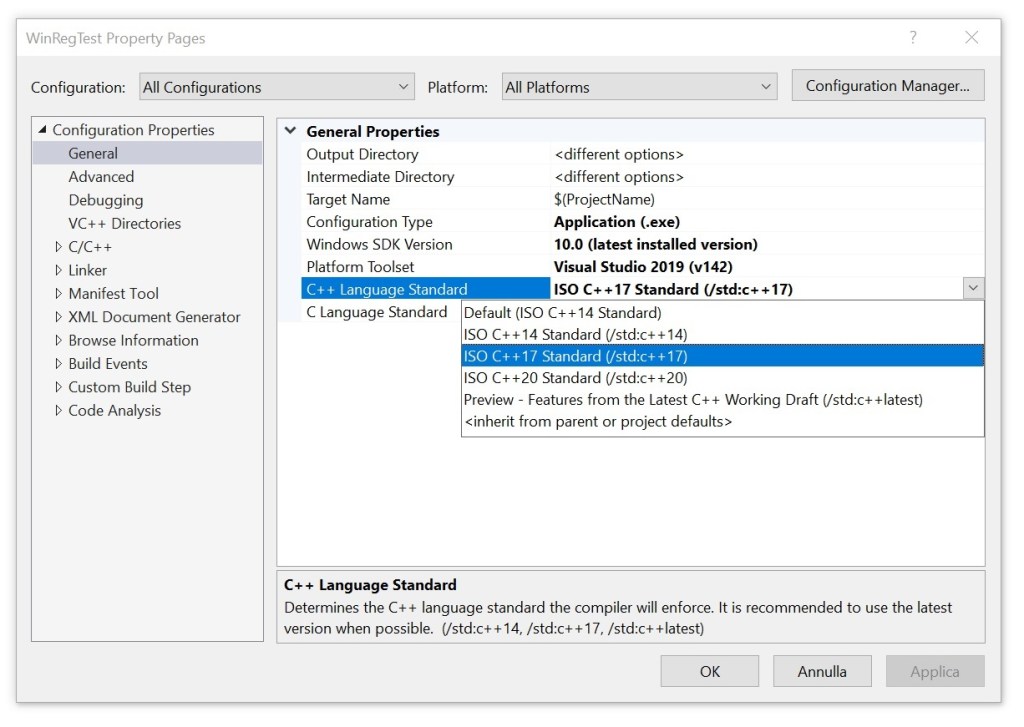
Compare that to the sane intuitive behavior of Visual Studio, in which you can simply set the C++ standard option in the UI, and the IDE will invoke the C++ compiler with the proper flags, reflecting that.

Selecting the C++ Language Standard in Visual Studio 2019

How To Pass a Custom Struct from C# to a C++ Native DLL?

Let’s discuss a possible way to build a “bridge” between the managed C# world and the native C++ world, using P/Invoke.

Someone had a native C++ DLL, that exported a C-interface function. This exported function expected a const pointer to a custom structure, defined like this:

// Structure expected by the C++ native DLL
struct DllData
{
    GUID Id;
    int  Value;
    const wchar_t* Name;
};

The declaration of the function exported from the C++ DLL looks like this:

extern "C" HRESULT 
__stdcall MyCppDll_ProcessData(const DllData* pData);

The request was to create a custom structure in C# corresponding to the DLL structure shown above, and pass an instance of that struct to the C-interface function exported by the C++ DLL.

A Few Options to Connect the C++ Native World with the C# Managed World

In general, to pass data between managed C# code and native C++ code, there are several options available. For example:

  • Create a native C++ DLL that exports C-interface functions, and call them from C# via P/Invoke (Platform Invoke).
  • Create a (thin) C++/CLI bridging layer to connect the native C++ code with the managed C# code.
  • Wrap the native C++ code using COM, via COM objects and COM interfaces, and let C# interact with those COM wrappers.

The COM option is the most complex one, but probably also the most versatile. It would also allow reusing the wrapped C++ components from other programming languages that know how to talk with COM.

C++/CLI is an interesting option, easier than COM. However, like COM, it’s a Windows-only option. For example, considering this GitHub issue on .NET Core: C++/CLI migration to .Net core on Linux, it seems that C++/CLI is not supported on other platforms like Linux.

On the other hand, the P/Invoke option is available cross-platform on both Windows and Linux.

In the remaining part of this article, I’ll focus on the P/Invoke option to solve the problem at hand.

Using P/Invoke to Pass the Custom Structure from C# to the C++ DLL

To be able to pass the custom structure from C# to the C++ DLL exported-function, we need two steps:

  1. Define the C++ struct in C# terms; in other words, we need to map the existing C++ struct definition into some corresponding C# structure definition.
  2. Use DllImport to write a C# function declaration corresponding to the original native C-interface exported function, that C# will be able to understand.

Let’s start with the step #1. This is the C++ structure:

// Structure expected by the C++ native DLL
struct DllData
{
    GUID Id;
    int  Value;
    const wchar_t* Name;
};

It contains three fields, of types: GUID, int, and const wchar_t*. We can map those in C# using the managed types Guid, Int32, and String. So, the corresponding C# structure definition looks like this:

[StructLayout(LayoutKind.Sequential, CharSet=CharSet.Unicode)]
public struct DllData
{
    public Guid Id;
    public Int32 Value;
    public String Name;
}

Note that the CharSet field is set to CharSet.Unicode, to specify that the String fields should be copied from their managed C# format (which is Unicode UTF-16) to the native Unicode format (again, UTF-16 const wchar_t* in the C++ structure definition).

Now let’s focus on the step #2, which is the use of the DllImport attribute to import in C# the C-interface function exported by the native DLL. The native C-interface function has the following declaration:

extern "C" HRESULT 
__stdcall MyCppDll_ProcessData(const DllData* pData);

I crafted the following P/Invoke C# declaration for it:

[DllImport("MyCppDll.dll", 
           EntryPoint = "MyCppDll_ProcessData",
           CallingConvention = CallingConvention.StdCall,
           ExactSpelling = true,
           PreserveSig = false)]
static extern void ProcessData([In] ref DllData data);

The first parameter is the name of the native DLL: MyCppDll.dll in our case.

Then, I used the EntryPoint field to specify the name of the C-interface function exported from the DLL.

Next, I used the CallingConvention field to specify the StdCall calling convention, which corresponds to the C/C++ __stdcall.

With ExactSpelling=true we tell P/Invoke to search only for the function having the exact name we specified (MyCppDll_ProcessData in this case). Platform Invoke will fail if it cannot locate the function with that exact spelling.

Moreover, with the PreserveSig field set to false, we tell P/Invoke that the native function returns an HRESULT, and in case of error return codes, these will be automatically converted to exceptions in C#.

Finally, since the DllData structure is passed by pointer, I used a ref parameter in the C# P/Invoke declaration. In addition, since the pointer is marked const in C/C++, to explicitly convey the input-only nature of the parameter, I used the [In] attribute in the C# P/Invoke code.

Note that to use the above P/Invoke services, you need the System and System.Runtime.InteropServices namespaces.

Diagram showing a C# application passing a custom struct to a C-interface native C++ DLL.
Passing a custom struct from C# to a C-interface native C++ DLL via P/Invoke

Once you have set the above P/Invoke infrastructure, you can simply pass instances of the C# structure to the native C-interface function exported by the native C++ DLL, like this:

// Create an instance of the custom struct in C#
DllData data = new DllData
{ 
    Id = Guid.NewGuid(), 
    Value = 10, 
    Name = "Connie" 
};

// Pass it to the C++ DLL
ProcessData(ref data);

Piece of cake 😉

P.S. I uploaded some related compilable demo code here on GitHub.

How To Fix an Unhandled System.DllNotFoundException in Mixed C++/C# Projects

Let’s see how to fix a common problem when building mixed C++/C# projects in Visual Studio.

Someone had a Visual Studio 2019 solution containing a C# application project and a native C++ DLL project. The C# application was supposed to call some C-interface functions exported by the native C++ DLL.

Both projects built successfully in Visual Studio. But, after the C# application was launched, a System.DllNotFoundException was thrown when the C# code tried to invoke the DLL-exported functions:

Visual Studio shows an error message complaining about an unhandled exception of type System.DllNotFoundException when trying to invoke native C++ DLL functions from C# code.
Visual Studio complains about an unhandled System.DllNotFoundException when debugging the C# application.

So, it looks like the C# application is unable to find the native C++ DLL.

First Attempt: A Manual Fix

In a first attempt to solve this problem, I tried manually copying the native C++ DLL from the folder where it was built into the same folder where the C# application was built (for example: from MySolution\Debug to MySolution\CSharpApp\bin\Debug). Then, I relaunched the C# application, and everything worked fine as expected this time! Wow 🙂 The problem was kind of easy to fix.

However, I was not 100% happy, as this was kind of a manual fix, that required manually copying-and-pasting the DLL from its own folder to the C# application folder. I would love to have Visual Studio doing that automatically!

A Better Solution: Making the Copy Automatic in Post-build

Well, it turns out that we can do better than that! In fact, it’s possible to automate that process and basically instruct Visual Studio’s build system to perform the aforementioned copy for us. To do so, we basically need to specify a custom command line that VS automatically executes as a post-build event.

In Solution Explorer, right-click on the C# application project, and select Properties from the menu.

Select the Build Events tab, and enter the desired copy instruction in the Post-build event command line box. For example, the following command can be used:

xcopy "$(SolutionDir)$(Configuration)\MyCppDll.dll" "$(TargetDir)" /Y

Then type Ctrl+S or click the Save button (= diskette icon) in the toolbar to save these changes.

Setting a post-build event command line inside Visual Studio IDE to copy the DLL into the same folder of the C# application.
Setting the post-build event command line to copy the DLL into the C# application folder

Basically, with the above settings we are telling Visual Studio: “Dear VS, after successfully building the C# application, please copy the C++ DLL from its original folder into the same folder where you have just built the C# application. Thank you very much!”

After relaunching the C# application, this time everything went well, and the C# EXE was able to find the C++ DLL and call its exported C-interface functions.

Addendum: Demystifying the $(Thingy)

If you take a look at the custom copy command added in post-build event, you’ll notice some apparently weird syntax like $(SolutionDir) or $(TargetDir). These $(something) are basically MSBuild macros, that expand to meaningful stuff like the path of the Visual Studio solution, or the directory of the primary output file for the build (e.g. the directory where the C# application .exe file is created).

You can read more about those MSBuild macros in this MSDN page: Common macros for MSBuild commands and properties.

Note that the macros representing paths can include the trailing backslash \; for example, this is the case of $(SolutionDir). So, take that into account when combining these macros to refer to actual sub-directories and paths in your solution.

Considering the command used above:

xcopy "$(SolutionDir)$(Configuration)\MyCppDll.dll" "$(TargetDir)" /Y

$(SolutionDir) represents the full path of the Visual Studio solution, e.g. C:\Users\Gio\source\repos\MySolution\.

$(TargetDir) is the directory of the primary output file for the build, for example the directory where the C# console app .exe is created. This could be something like C:\Users\Gio\source\repos\MySolution\CSharpApp\bin\Debug\.

$(Configuration) is the name of the current project configuration, for example: Debug when doing a debug build.

So, for example: $(SolutionDir)$(Configuration) would expand to something like C:\Users\Gio\source\repos\MySolution\Debug in debug builds.

In addition, you can also see how these MSBuild macros are actually expanded in a given context. To do so in Visual Studio, once you are in the Build Events tab, click the Edit Post-build button. Then click the Macros > > button to view the actual expansions of those macros.

A sample expansion of some MSBuild macros.
Sample expansion of some MSBuild macros

C++ Myth-Buster: UTF-8 Is a Simple Drop-in Replacement for ASCII char-based Strings in Existing Code

Let’s bust a myth that is a source of many subtle bugs. Are you sure that you can simply drop UTF-8-encoded text in char-based strings that expect ASCII text, and your C++ code will still work fine?

Several (many?) C++ programmers think that we should use UTF-8 everywhere as the Unicode encoding in our C++ code, stating that UTF-8 is a simple easy drop-in replacement for existing code that uses ASCII char-based strings, like const char* or std::string variables and parameters.

Of course, that UTF-8-simple-drop-in-replacement-for-ASCII thing is wrong and just a myth!

In fact, suppose that you wrote a C++ function whose purpose is to convert a std::string to lower case. For example:

// Code proposed by CppReference:
// https://en.cppreference.com/w/cpp/string/byte/tolower
//
// This code is basically the same found on StackOverflow here:
// https://stackoverflow.com/q/313970
// https://stackoverflow.com/a/313990 (<-- most voted answer)

std::string str_tolower(std::string s)
{
    std::transform(s.begin(), s.end(), s.begin(),
        // wrong code ...
        // <omitted>
 
        [](unsigned char c){ return std::tolower(c); } // correct
    );
    return s;
}

Well, that function works correctly for pure ASCII characters. But as soon as you try to pass it a UTF-8-encoded string, that code will not work correctly anymore! That was already discussed in my previous blog post, and also in this post on The Old New Thing blog.

I’ll give you another simple example. Consider the following C++ function, PrintUnderlined(), that receives a std::string (passed by const&) as input, and prints it with an underline below:

// Print the input text string, with an underline below
void PrintUnderlined(const std::string& text)
{
    std::cout << text << '\n';
    std::cout << std::string(text.length(), '-') << '\n';
}

For example, invoking PrintUnderlined(“Hello C++ World!”), you’ll get the following output:

Hello C++ World!
----------------

Well, as you can see, this function works fine with ASCII text. But, what happens if you pass UTF-8-encoded text to it?

Well, it may work as expected in some cases, but not in others. For example, what happens if the input string contains non-pure-ASCII characters, like the LATIN SMALL LETTER E WITH GRAVE è (U+00E8)? Well, in this case the UTF-8 encoding for “è” is represented by two bytes: 0xC3 0xA8. So, from the viewpoint of the std::string::length() method, that “single character è” counts as two chars. So, you’ll get two underscore characters for the single è, instead of the expected one underscore character. And that will produce a bogus output with the PrintUnderlined function! And note that this same function works correctly for ASCII char-based strings.

So, if you have some existing C++ code that works with const char* or std::string, or similar char-based string types, and assumes ASCII encoding for text, don’t expect to pass a UTF-8-encoded strings and have it just automagically working fine! The existing code may still compile fine, but there is a good chance that you could have introduced subtle runtime bugs and logic errors!

Some kanji characters

Spend some time thinking about the exact type of encoding of the const char* and std::string variables and parameters in your C++ code base: Are they pure ASCII strings? Are these char-based strings encoded in some particular ANSI/Windows code pages? Which code page? Maybe it’s an “ANSI” Windows code page like Latin 1 / Western European Windows-1252 code page? Or some other code page?

You can pack many different kinds of stuff in char-based strings (ASCII text, text encoded in various code pages, etc.), and there is no guarantee that code that used to work fine with that particular encoding would automatically continue to work correctly when you pass UTF-8-encoded text.

If we could start everything from scratch today, using UTF-8 for everything would certainly be an option. But, there is a thing called legacy code. And you cannot simply assume that you can just drop UTF-8-encoded strings in the existing char-based strings in existing legacy C++ code bases, and that everything will magically work fine. It may compile fine, but running fine as expected is another completely different thing.